Monitor thresholds and device heartbeats
The Rules menu supports two rule types.
| Rule type | When it notifies |
|---|---|
| Threshold (value condition) | When a received value meets the condition (e.g. temperature > 30) |
| Heartbeat (no data) | When a selected device sends no data for a set time |
You can notify via Slack, Webhook, or email.
What you need
- A project that has already received data (see the Quick Start if not)
- A notification target (Slack Incoming Webhook URL, Webhook URL, or email address)
Create a threshold rule
- Open the Rules menu and click New Rule.
- In Rule Type, select "Threshold (value condition)".
- Enter the Event Column (field to monitor), Operator, and Threshold.
- Choose a Notification Type and enter the Webhook URL or email address.
- Click Test Notification to confirm delivery, then click Create Rule.
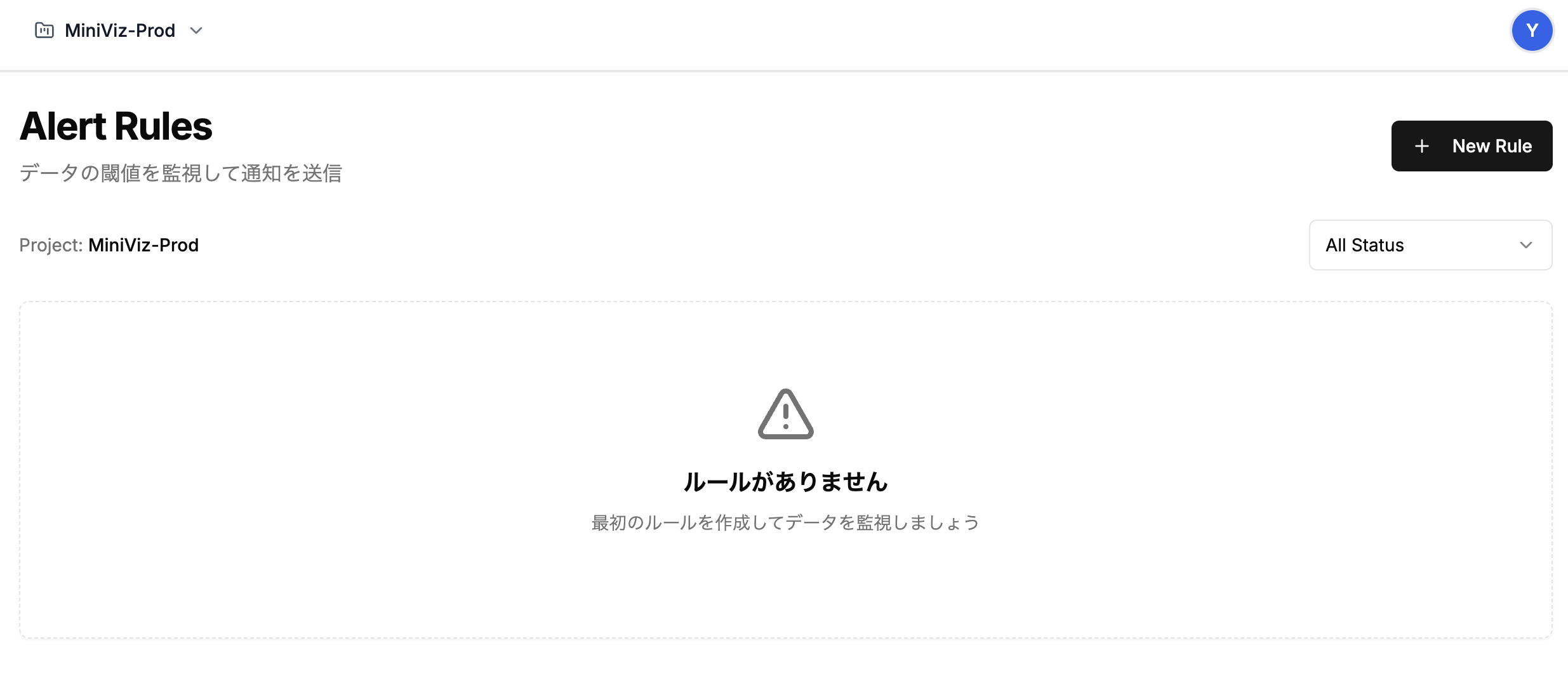
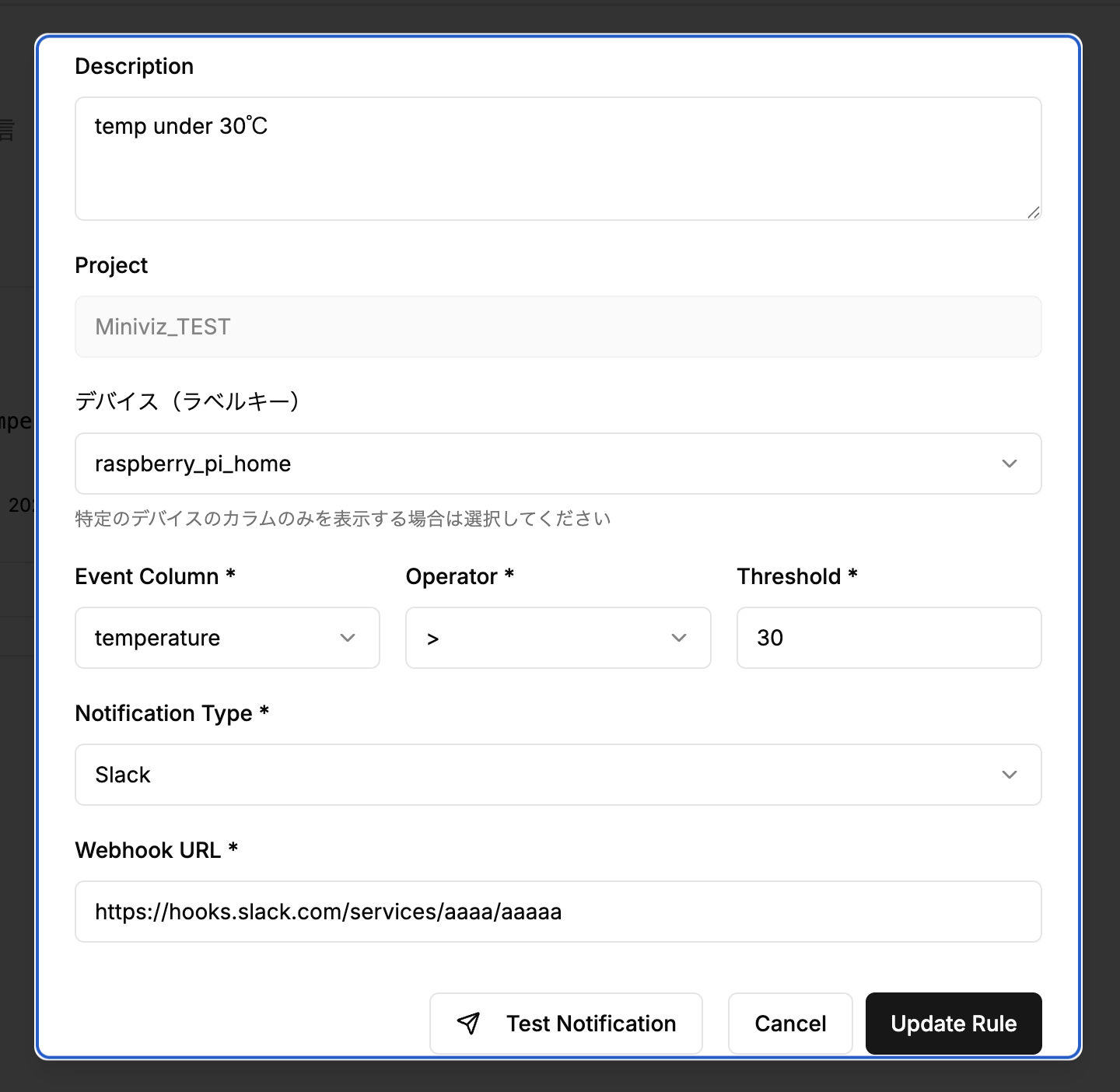
A notification is sent when data that meets the condition is received.
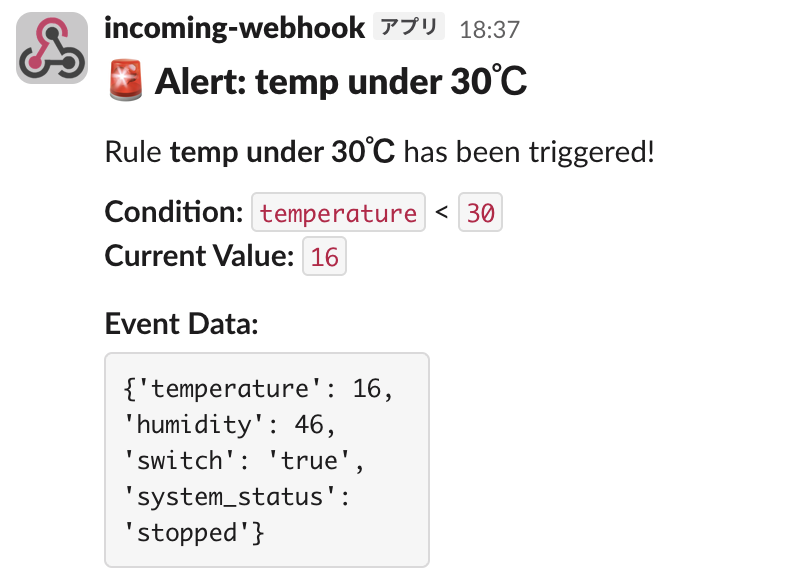
Each rule notifies at most once every 5 minutes.
Create a heartbeat rule
- Open the Rules menu and click New Rule.
- In Rule Type, select "Heartbeat (no data)".
- In Device to monitor (Label Key), select the
label_keyof the device to monitor. - In Treat as down after, choose 10, 30, or 60 minutes.
- Set the notification target and click Create Rule.
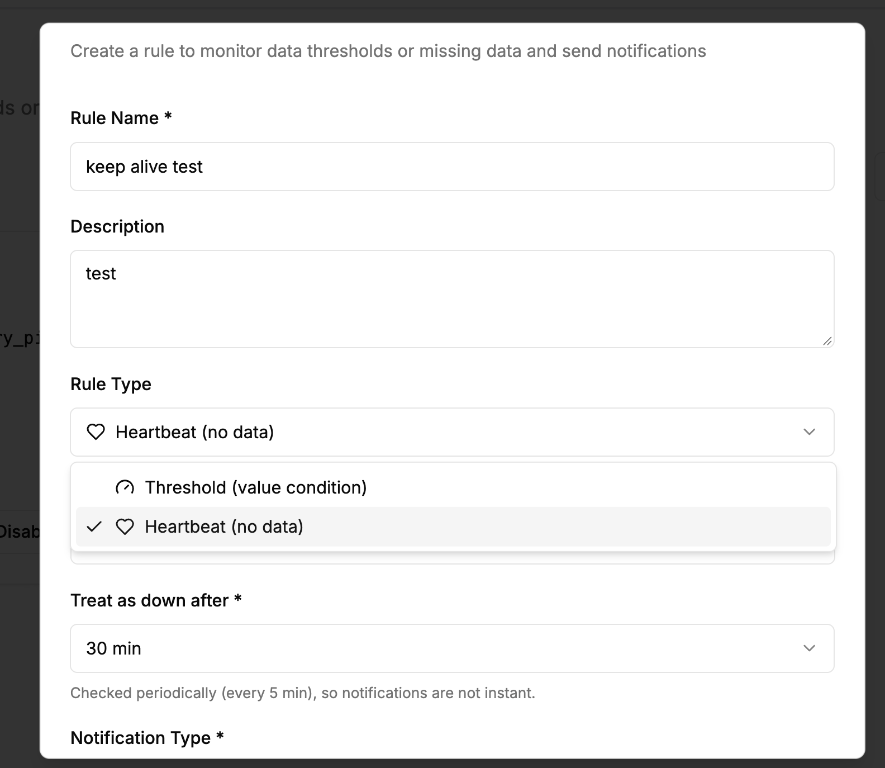
Each rule card shows the device status as "Receiving" or "No data".
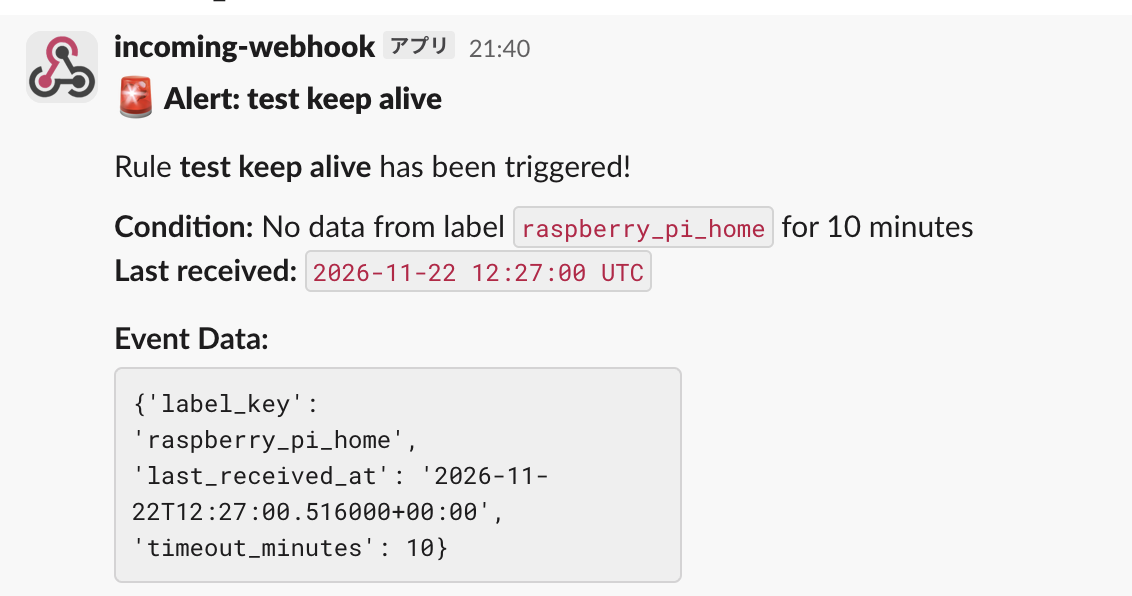
When data stops, you receive a notification like this (Slack example). It includes the target label_key and the last time data was received.
Notification timing
- Once the set time has passed since the last received data, MiniViz notifies you once. It does not repeat while the device stays down.
- Checks run every 5 minutes, so notifications are not instant. They can arrive up to about 5 minutes after the set time.
- When data resumes, the status returns to "Receiving" (no recovery notification is sent). If data stops again, you are notified again.
Example: with a 10-minute setting and the last data received at 9:09, the deadline is 9:19. The notification arrives with the 9:20 check.
Choose a time well above the device's send interval. For a device that sends every 15 minutes, choose 30 minutes or more.
- A
label_keythat has never sent data is not notified. - Data that was not stored (for example, rejected by the send interval limit with 429) is treated as not received.
Rule limits
The rule limit counts threshold and heartbeat rules together: up to 1 on the Free plan and up to 5 on the Pro plan.